


Save Visio as PDF
Microsoft Visio is one of the most popular software packages for creating diagrams, charts and drawings. However, Visio saves files in a proprietary format that can be opened by very few computers provided that the Visio program is installed. This is one of the reasons why the files saved in the Visio format should be converted to PDF which is much wider recognized. By using the Universal Document Converter you will be able to get standard PDF files out of Visio thus making them viewable on any PC.
On this page:
- How to save Visio as PDF?
- Save several drawings to a single PDF
- Convert Visio to password protected PDF
- Put watermark on the drawing to protect your copyright
- Convert Visio drawings and charts to PDF in batch mode
- Visio to PDF conversion code examples for developers
Save Several Drawings to a Single PDF
Most often a certain project involves several drawings, as well as charts and diagrams. To combine them all into one document may be a good solution for organizing the project documentation in a proper way.
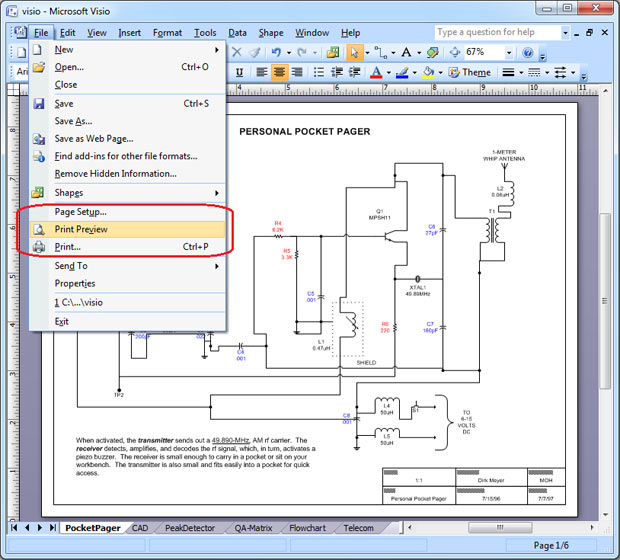
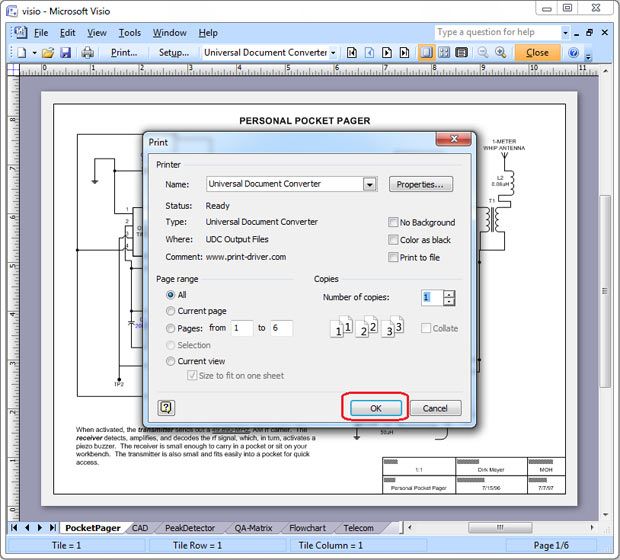
- Open the drawing and click File->Print Preview… in the Visio main menu
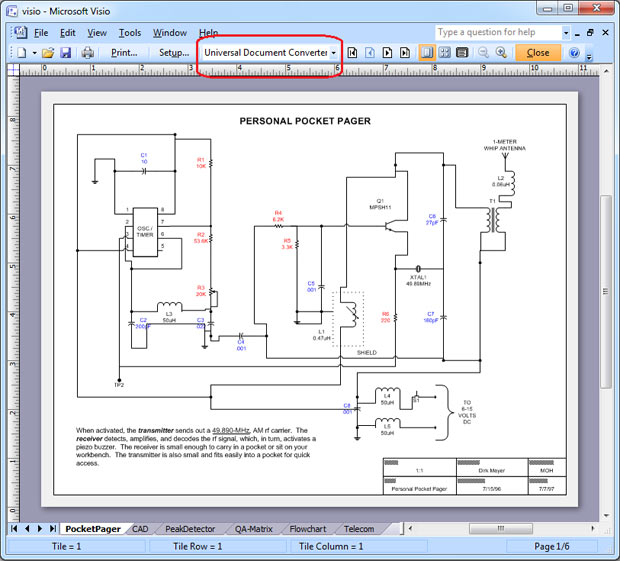
- Select Universal Document Converter from the list of printers
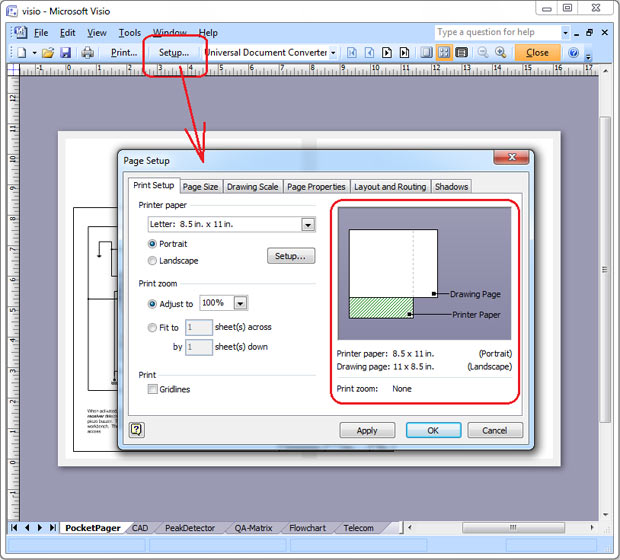
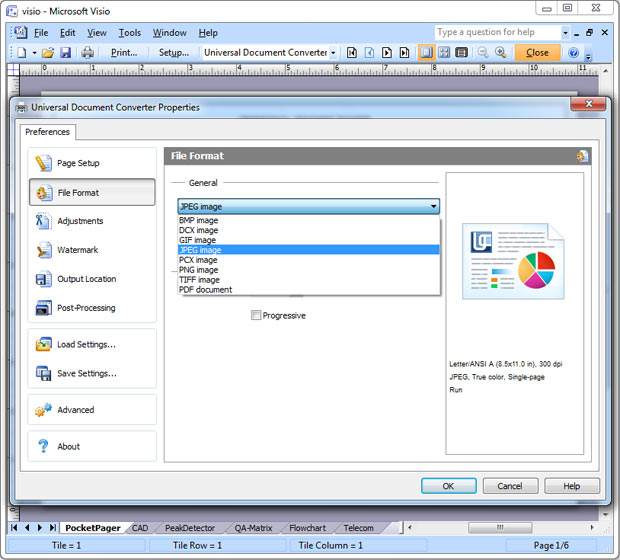
- Click Setup… In case if printer paper size and drawing page size are different, try change page orientation or page size to make them the same. Click OK to apply changes.
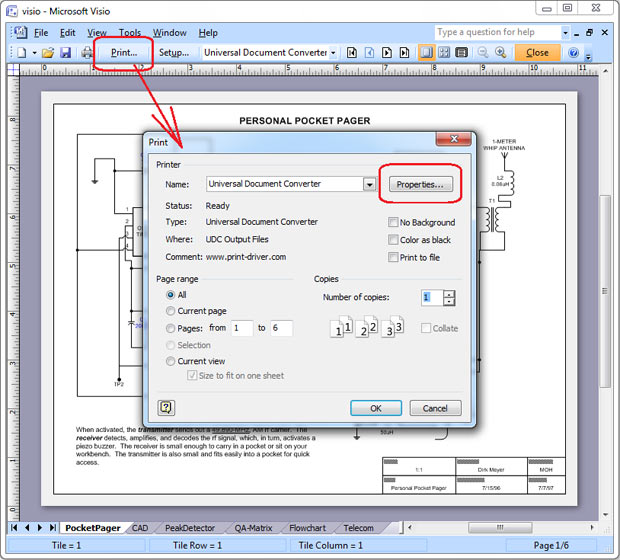
- Click Print…, then click Properties…
- In the File Format section select PDF Document
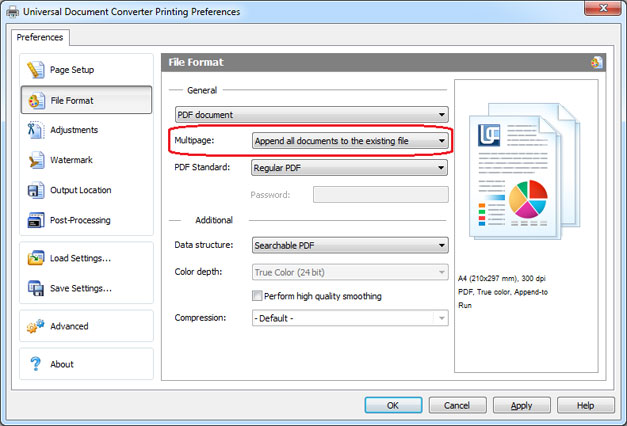
- Select Append all documents to the existing file feature (look at the screenshot below) and click OK
After this all the drawings you intend to print on Universal Document Converter will be appended to the PDF file you selected in the Output location area.
Convert Visio to Password Protected PDF
The necessity to limit the access to the information saved as a Visio file is pretty frequent, but the Visio file itself cannot be password protected directly and requires conversion to a different format, i.e. PDF. Flawless conversion from Visio into password protected PDF is guaranteed by the Universal Document Converter.
- Open the drawing and click File->Print Preview… in the Visio main menu
- Select Universal Document Converter from the list of printers
- Click Setup… In case the printer paper size and drawing page size are different, try to change the page orientation or the page size to make them the same. Click OK to apply changes.
- Click Print…, then click Properties…
- In the File Format section select PDF Document
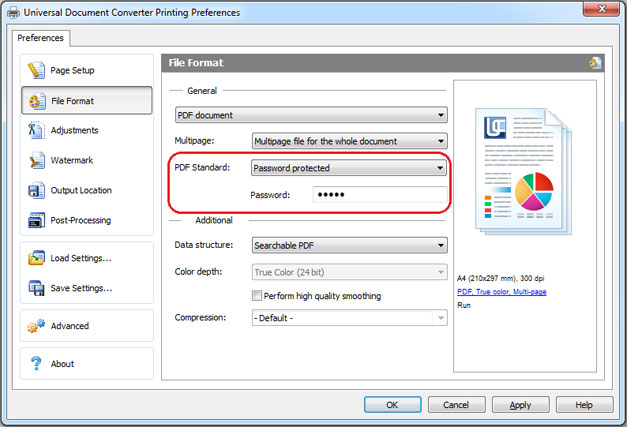
- Select Password Protected standard of PDF and enter a password. Click OK
Now the Universal Document Converter is ready to convert the Visio drawing into a password protected PDF file.
Put Watermark on the Drawing to Protect Your Copyright
Copyright protection is essential for all sorts of documentation. To prevent anyone from claiming your authorship you can place a watermark onto your drawings:
- Open the drawing and click File->Print Preview… in the Visio main menu
- Select Universal Document Converter from the list of printers
- Click Setup… In case the printer paper size and the drawing page size are different, try to change the page orientation or the page size to make them the same. Click OK to apply changes.
- Click Print…, then click Properties…
- In the File Format section select PDF Document
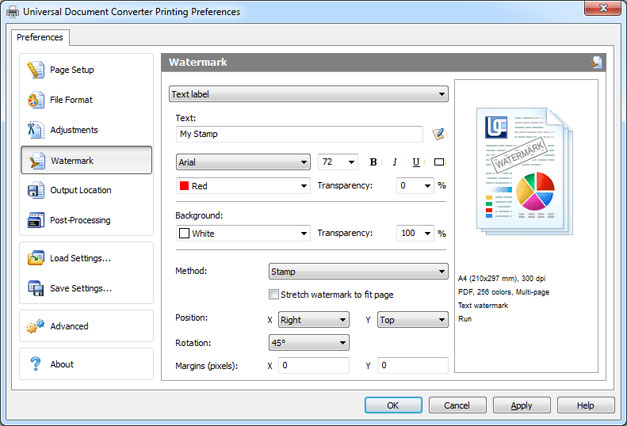
- On the Universal Document Converter settings panel go to Watermark area. You can use Text watermark or Picture like your company logo, etc. Click OK
Convert Visio Drawings and Charts to PDF in Batch Mode
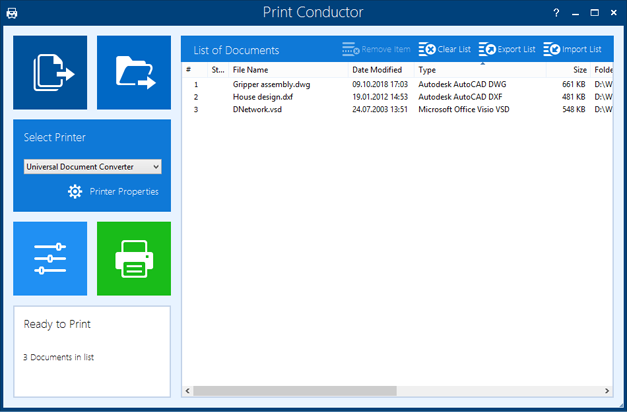
Print Conductor is the software that has been designed to convert drawings and charts into PDF and other formats in batch mode.
- Add the drawings you would like to convert
- Select Universal Document Converter printer
- Click Change Settings to set the destination folder and PDF as an output file format
- Click Start to begin converting Visio drawings and charts to PDF.
Visio to PDF Conversion Code Examples for Developers
The Universal Document Converter offers a range of services to software developers. Make use of the public API and code examples and introduce your own ideas combining them with the existing resources. The Universal Document Converter can be installed on several workstations thanks to its automatic deployment system.
Click here to see some examples on how to convert Visio to PDF in different programming languages.
Related conversion tutorials:
-

Elizabeth Kotaeva
Copywriter from Russia
«At the present moment, I can already say that the use of Universal Document Converter has raised the return on orders that were not paid for in advance by approximately 30%!»