


Convert AutoCAD DWG to PDF
In this article, we overview the process of converting AutoCAD format to PDF, JPEG, TIFF, PNG, BMP, DCX, PCX, TXT – with different application tools. Sometimes users need to send several AutoCAD designs to another person in an unaltered format, but AutoCAD does not allow many DWG, DXF to be converted to PDF at a time. Using the software and converters mentioned here, you can batch convert, print and combine your AutoCAD drawings to PDF or images. Once saved as a PDF file, there’s no need to download special CAD software. A drawing can be opened on any computer – even a web browser will do!
On this page:
- How to Convert Autodesk AutoCAD Drawing to PDF
- Print AutoCAD DWG to PDF – Detailed Video Tutorial
- Combine Several Drawings Into a Single PDF
- Split Layout Sheets Into Separate PDFs
- Convert AutoCAD DWG Into a Password Protected PDF
- Add Watermark on the Drawing to Copyright your Project
- Open DWG and other files without AutoCAD
- Other DWG Conversion Tools
- Convert AutoCAD DXF to PDF
- AutoCAD to PDF Code Examples for Developers
How to Convert Autodesk AutoCAD Drawing to PDF
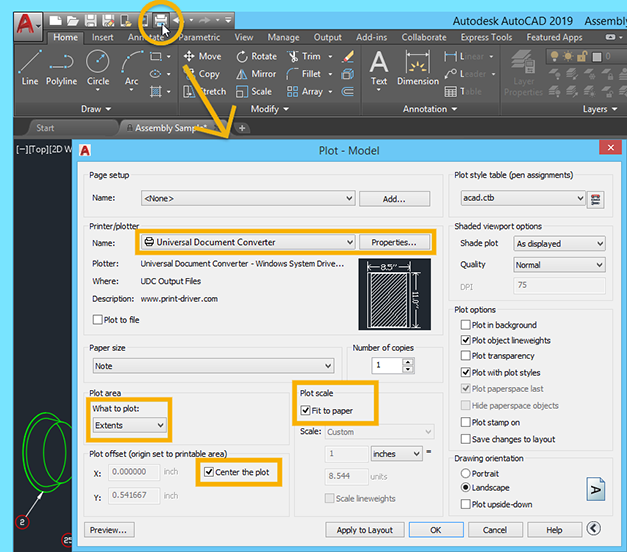
- Open the drawing in Autodesk AutoCAD and click Plot
- Select Universal Document Converter from the list of plotters
- Click Properties… > Custom Properties… > File Format > PDF document
- Change What to plot option to Extents
- Check options Center the plot and Fit to paper like shown on the screenshot below
- Click OK to start converting AutoCAD to PDF

Print AutoCAD DWG to PDF – Detailed Video Tutorial
Use this tutorial to print AutoCAD DWG to PDF with virtual printer Universal Document Converter:
Combine Several Drawings Into a Single PDF
- Open the drawing and click Print (Plot)
- Select Universal Document Converter from the list of plotters and click Properties
- Select Custom Properties on the Device and Document Settings tab and click Custom Properties button in the Access Custom Dialog section
- On the Universal Document Converter settings panel, change paper size according to your preferences
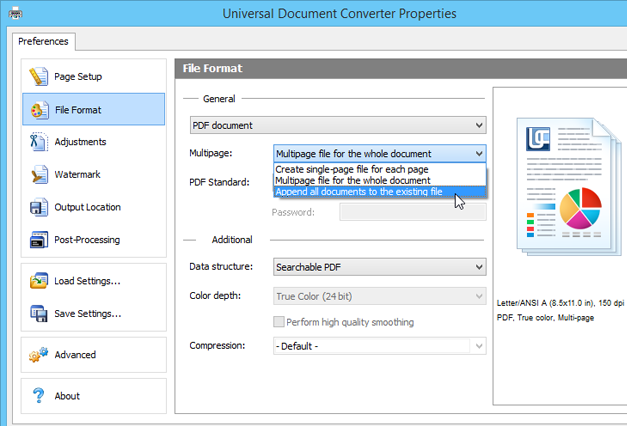
- Change the destination file format to PDF Document
- Select Append all documents to the existing file feature like shown on the screenshot below
- Click OK
After this, all the drawings will be appended to the PDF file you selected in the Output location menu.
Split Layout Sheets Into Separate PDFs
A DWG drawing can consist of multiple layout tabs (sheets). When converting DWG to PDF or TIFF, you may need to save each layout as a separate PDF file or have the ability to select only certain layouts of a drawing. Universal Document Converter allows you to do so. You can set processing only the current tab, set a specific range or all tabs. You can also select between multipage and split options, here’s a simple scenario:
- Open the drawing and click Print (Plot)
- Select Universal Document Converter and click Properties
- Open Universal Document Converter settings
- Go to File Format
- Select Create single-page file for each page
You can split DWG drawings into separate files using our virtual printer and other tools described in this article: FolderMill, Print Conductor + UDC, DocuFreezer.
Convert AutoCAD DWG Into a Password Protected PDF
A password protected PDF will guarantee that only authorized users will be able to open the information contained in the drawing, thus keeping it confidential.
- Open the drawing and click Print (Plot)
- Select Universal Document Converter and click Properties
- Select Custom Properties on the Device and Document Settings tab and click Custom Properties button in the Access Custom Dialog section
- On the Universal Document Converter settings panel, change the size of the page according to your preferences
- Change the destination file format to PDF Document
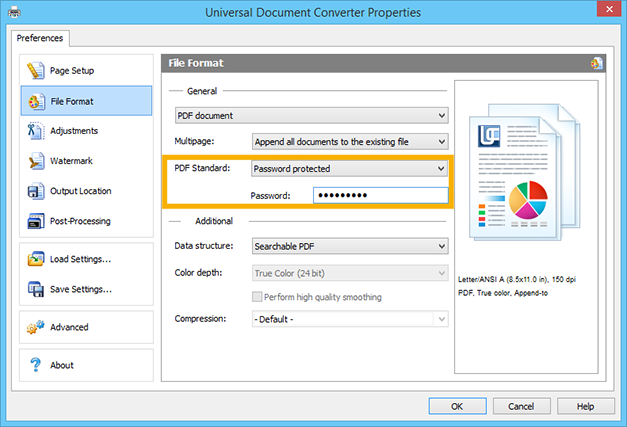
- Select Password Protected standard of PDF and enter a password
Now the Universal Document Converter is ready to convert your drawing into a password protected PDF file.
Add Watermark on the Drawing to Copyright your Project
Watermarking your drawings is one of the ways to copyright your intellectual property and protect it from illegal use.
- Open the drawing and click Print (Plot)
- Select Universal Document Converter from the list of plotters and click Properties
- Select Custom Properties on the Device and Document Settings tab and click Custom Properties button in the Access Custom Dialog section
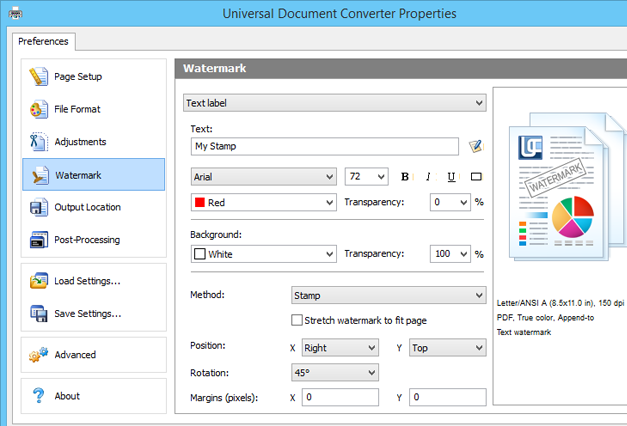
- On the Universal Document Converter settings panel, go to the Watermark section. Select the type of watermark you wish to use.
Open DWG and other files without AutoCAD
Just need to view a file? You don’t need to download 2D or 3D CAD programs – a viewer will do. We suggest a standalone offline viewer, approved by SolidWorks – eDrawings Viewer. It is compatible with Universal Document Converter and supports popular CAD formats: DXF and DWG, eDRW, ePRT, eASM, SolidWorks and others. Alternatively, Autodesk offers its Autodesk Viewer. It is an online CAD viewing tool where you upload files and see them through the browser interface. Another option is to download an open source free CAD program, e.g., LibreCAD, which can be easily found on the Internet.
If you want your client, colleague or a business partner to be able to open your CAD drawings, assume that they might not have the necessary program or viewer. So it’s better to save it to a more universally accepted format such as PDF. Therefore it’s easier to convert a file to PDF in advance. In this article, you can choose the most suitable PDF conversion method for you.
Other DWG Conversion Tools
Convert AutoCAD DWG to PDF in Batch Mode
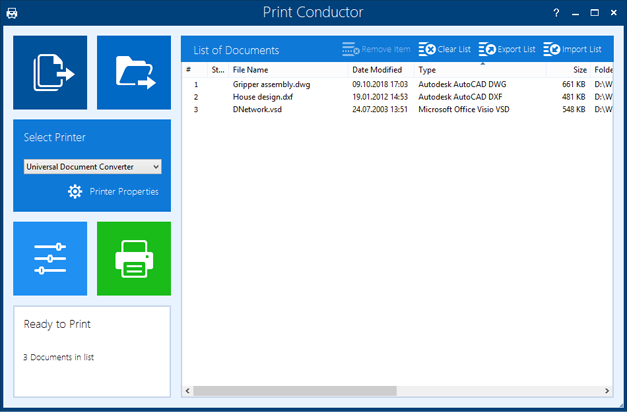
To convert many drawings saved as AutoCAD DWG files into the PDF format, i.e., to provide opportunities for batch converting AutoCAD DWG to PDF, use Print Conductor software together with Universal Document Converter.
- Add drawings you would like to convert to the List of Documents
- Select Universal Document Converter as printer
- Click Change Settings to set the destination folder and PDF Document as an output file format
- Click Start to begin converting drawings and charts to PDF.

Convert DWG to PDF Automatically – without AutoCAD
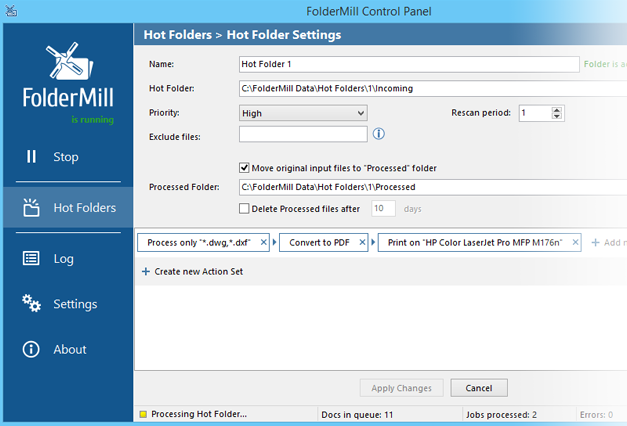
You don’t need to have expensive CAD systems or any third-party software installed to be able to convert DWG to PDF or image file types with software like FolderMill. FolderMill monitors Hot Folders for supported documents. When identified, the FolderMill service batches and sorts incoming documents then outputs them to a printer driver associated with the Hot Folder. One of the pros of this program is the ability to print or convert DWG files to PDF without AutoCAD.

Convert Multiple Drawings with Free DWG to PDF Converter
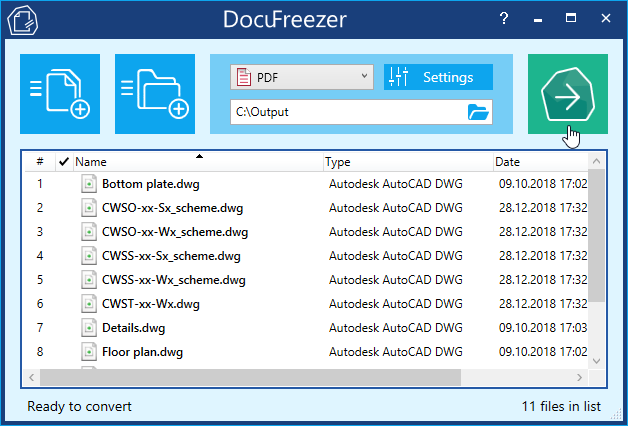
If you are looking for a reliable and straightforward file converter – Docufreezer is the right choice. It is a very intuitive tool that can sort in the correct order and bulk export your CAD drawings to PDF. The output file types are PDF, TXT and image formats (TIFF, JPG, PNG). This file converter can OCR your documents too – this feature was added recently. So, you can also save your document scans to plain text files or searchable PDFs.

Convert AutoCAD DXF to PDF
DXF stands for Drawing eXchange Format. Compared to DWG, it usually contains less data – only line work, dimensions, and text. While .dwg is the default file format and the most popular one, sometimes you may need to save the file in the .dxf format. All software mentioned in this guide supports this format as well.
AutoCAD to PDF Code Examples for Developers
Software developers may need to implement some already existing features of the Universal Document Converter into their software. We offer several types of resources that will help developers concentrate on their own projects: a public API, code examples and automatic deployment ability.
Here are some examples on how to convert AutoCAD drawings to PDF in different programming languages.
You can use the conversion core of the Universal Document Converter to broaden the conversion functionality by adding your own developments to the existing practices.
Related conversion tutorials:
-

Lori Hamilton
Cameron LNG, USA
«Universal Document Converter is beautiful and runs so smoothly! I will get a lot of use out of it. I'm the only designer at this site, and every department needs some kind of file converted all the time!»