


How to Save Outlook Message as PDF
Saving Microsoft Outlook messages as PDF files is quite a frequent necessity. It will help keep track of the financial or legal correspondence; it will simplify the documentary archiving.
On this page:
- How to save Outlook email message as PDF?
- Add an email attachment to the existing PDF file
- Place watermark on Outlook emails
- Password protection
- Outlook to PDF automation code for developers
Add an Email Attachment to the Existing PDF File
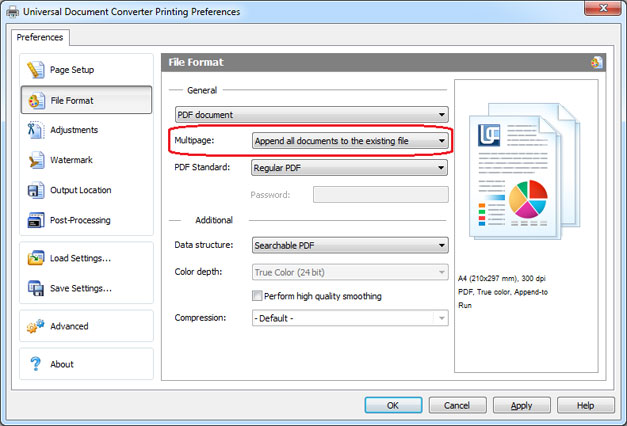
Email attachments can be saved as PDF files. In case you already have the PDF file created out of the Outlook email message and would like to add the attachment to it, please follow the instruction:
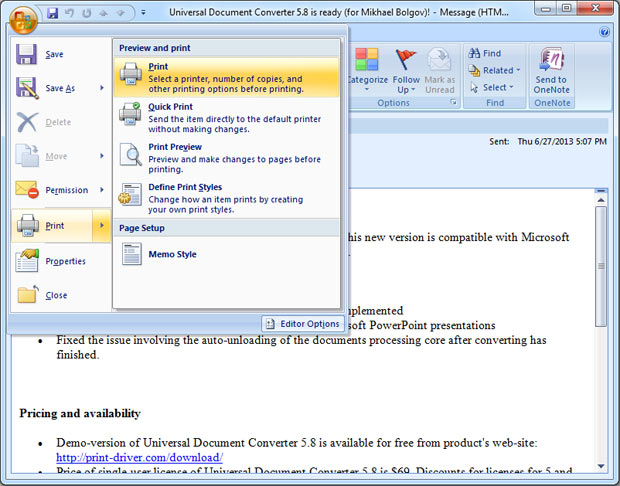
- Open the attachment (it can be saved as a document or an image) and click Print
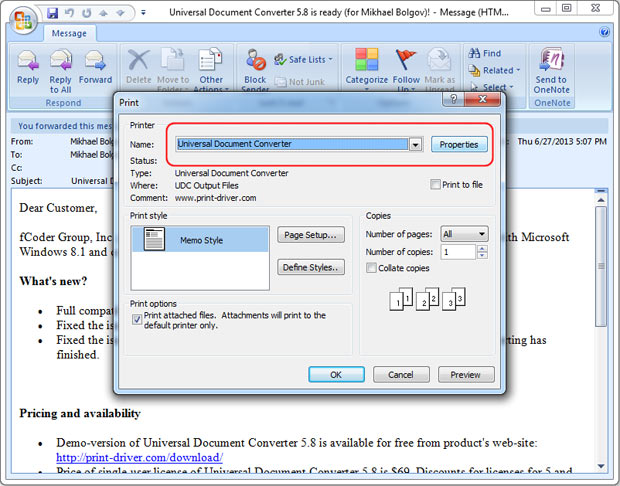
- Select Universal Document Converter from the list of printers and click Properties
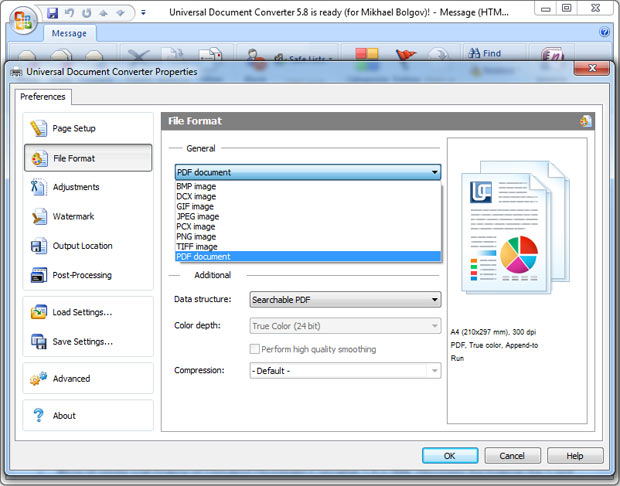
- Go to File Format and change Multipage option value to Append all documents to the existing file
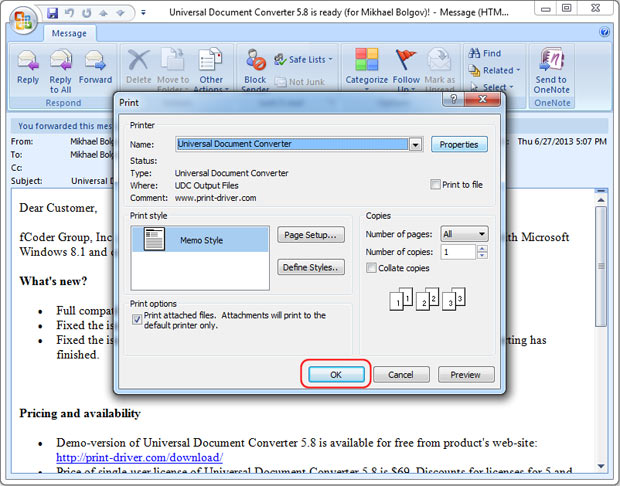
- Click OK and Print to start converting the email attachment to the PDF file
- Select the existing PDF file to append new pages to it in the corresponding menu.
Place Watermark on Outlook Emails
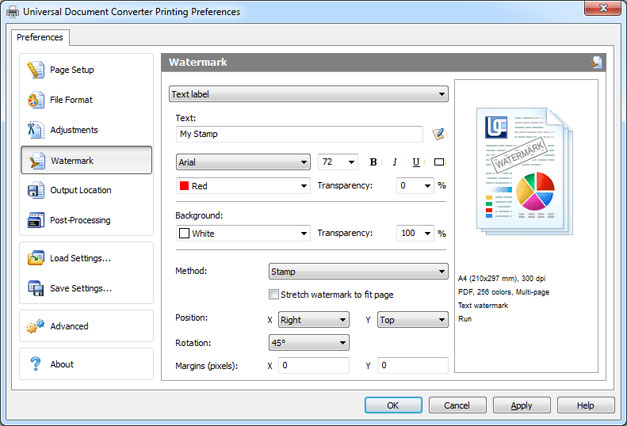
To make sure your email correspondence is protected from illegal use you can place a watermark on the Outlook email. Here is the instruction:
- Open the message and click Print
- Select Universal Document Converter from the list of printers and click Properties
- Go to Watermark and select Text label or Picture depending on your preferences
- Click OK to convert your Outlook message to PDF.
Password Protection
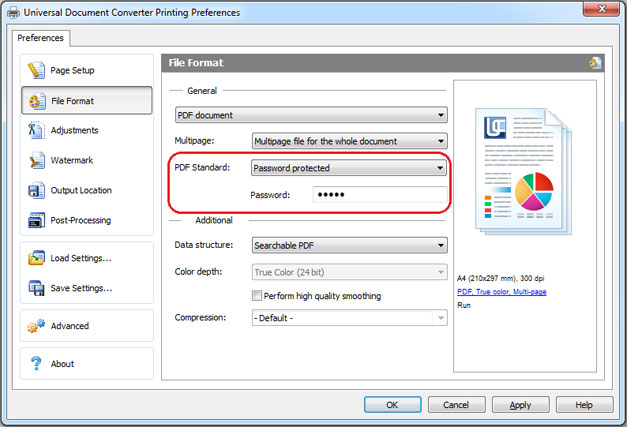
To keep your correspondence strictly confidential you can protect it by means of password protected PDF:
- Open the message and click Print
- Select Universal Document Converter from the list of printers and click Properties
- Go to File Format, select Password protected in PDF Standard and enter a password
- Click OK to convert your Outlook message to a password protected PDF file.
Outlook to PDF automation code for developers
Automatic conversion from Outlook to PDF can be utilized by software developers. Universal Document Converter offers public API and code examples that are available for similar projects related to documentary conversion.
Here are some examples of conversion from Outlook to PDF in different programming languages.
Related conversion tutorials:
-

John Haddock
USA
«Universal Document Converter is perfect for converting Word and PowerPoint documents into high quality JPEG images or well-compressed PDF files.»