


How to Convert Outlook to TIFF
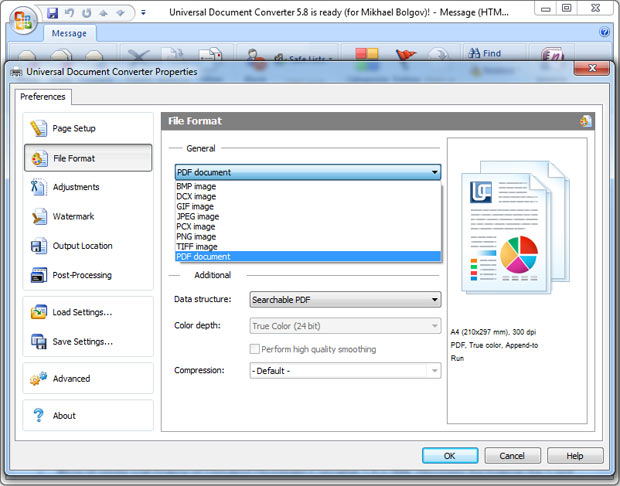
Universal Document Converter can help saving the Outlook email messages in the TIFF format. There is a wide selection of settings available for output TIFF files, including color depth, anti-aliasing and multipage format settings.
On this page:
- How to save Outlook email messages as TIFF files?
- Place a watermark on Outlook email messages
- Outlook to TIFF conversion code examples for developers
Place a Watermark on Outlook Email Messages
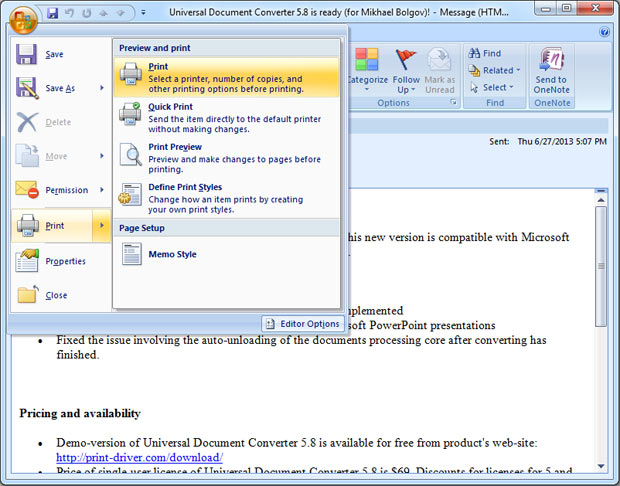
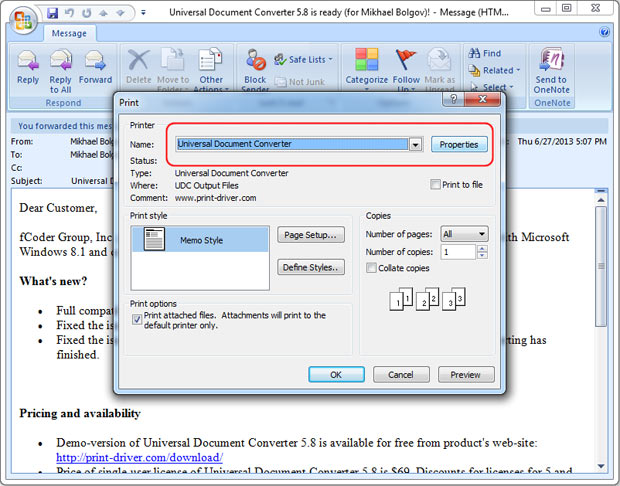
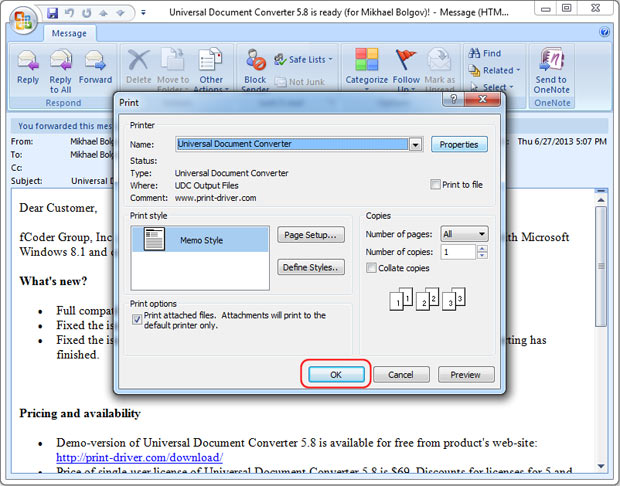
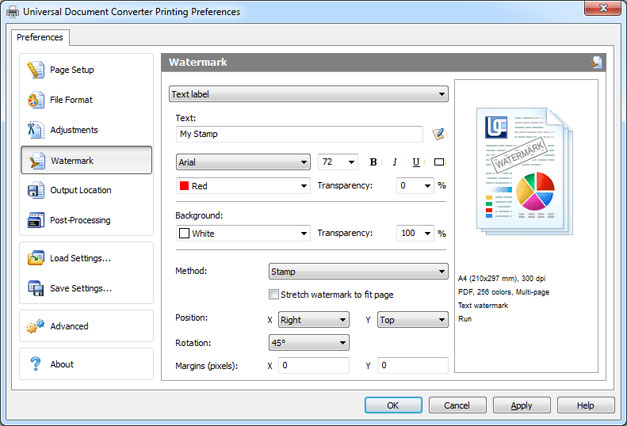
To make sure your email correspondence is protected from illegal use you can place a watermark on the Outlook email messages. Here is the instruction:
- Open the message and click Print
- Select Universal Document Converter from the list of printers and click Properties
- Go to Watermark and select Text label or Picture depending on your preferences
- Click OK to convert your Outlook message to TIFF.
Outlook to TIFF Conversion Code Examples for Developers
Software developers can make use of the existing resources available with Universal Document Converter. Developers can enable automatic Outlook to TIFF conversion to be used in other similar projects and applications.
Take a look at the examples of Outlook to TIFF for different programming languages.
Related conversion tutorials:
-

Arthur Rabatscher
AR-Soft Widnau GmbH, Switzerland
«On a Delphi-Developer-Homepage we found an example how to convert Word- or Excel Documents into PDF. Within this source code the use of the OCX of the Universal Document Converter was shown. This was the easiest way, how we could convert all kinds of documents into the PDF Format.»