


Convert DjVu to PDF
DjVu is a file format that is used to store scanned documents, books, and periodicals. The format allows for the distribution of images of high-res scanned documents, digital documents, and photographs. DjVu files are generally smaller than PDFs.
However, special plug-ins or viewers are required to view the files saved in the DjVu format, which limits the format’s accessibility. One way to solve this problem is to convert DjVu files to PDF format so that the resulting files can be opened on any computer or mobile device.
| On this page: | Published: 2013-09-01 |
How to Convert DjVu to PDF
To convert DjVu file to PDF you need two programs: WinDjView and Universal Document Converter.
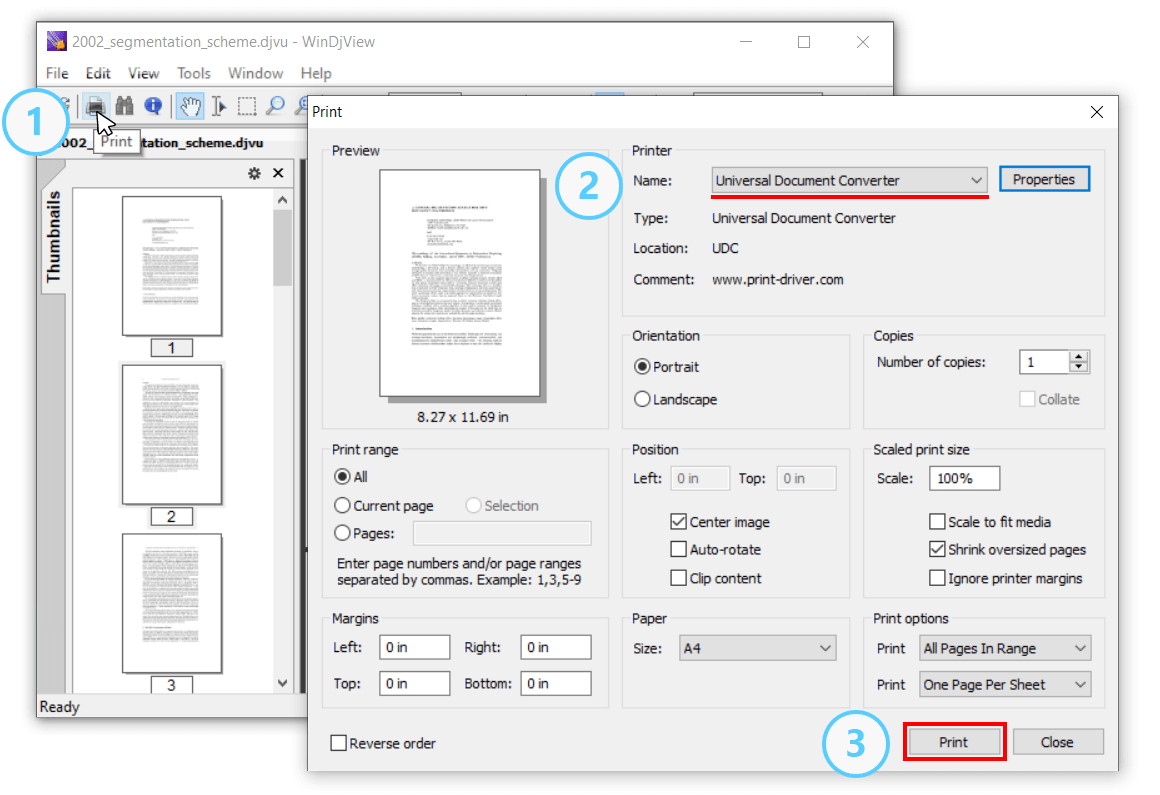
- Open a DjVu document and click Print;
- Select Universal Document Converter from the list of printers and click Print to start saving DjVu as PDF:
Place Watermark on Output PDF
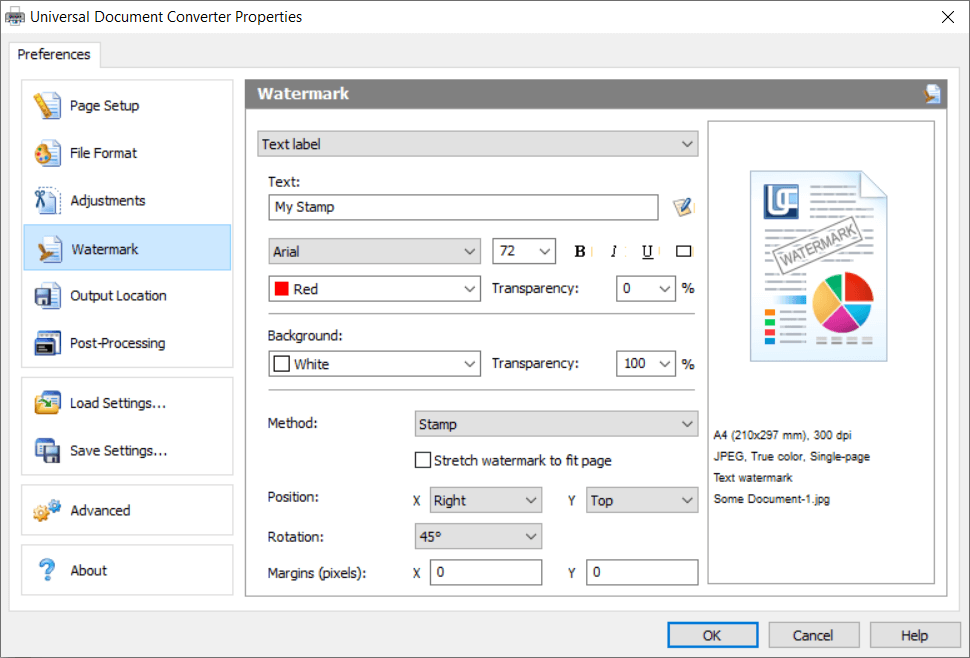
- Open a DjVu file and click Print;
- Select Universal Document Converter in the list of printers and click Properties;
- Go to the Watermark section and select Text label or Picture depending on your needs;
- Click OK to convert your DjVu file to PDF.
PDF Password Protection
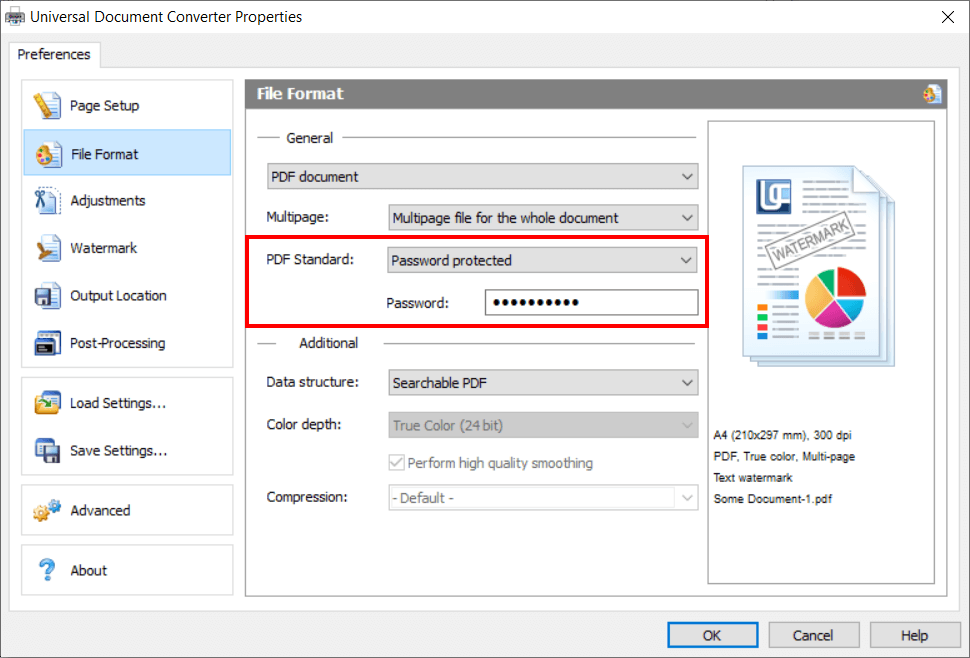
- Open a DjVu file and click Print;
- Select Universal Document Converter in the list of printers and click Properties;
- Go to File Format, select Password protected next to PDF Standard, and enter a password;
- Click OK to convert your DjVu to a password-protected PDF file.
How to Convert DjVu to JPG
Similar to DjVu to PDF conversion, you can simply convert a DjVu to a JPG. Again, JPEG will make the DjVu pages appropriate for any device. You should have two programs installed to perform the conversion – WinDjView (or another DjVu reader) and Universal Document Converter.
- Open DjVu document and click Print;
- Select Universal Document Converter in the list of printers and click Properties;
- Go to File Format, select JPEG Image and click OK;
- Click Print to save DjVu as JPEG.
Add Watermark to Output JPEG Files
- Open a DjVu file and click Print;
- Select Universal Document Converter in the list of printers and click Properties;
- Go to File Format and select JPEG Image;
- Go to the Watermark section and select Text label or Picture depending on your needs;
- Click OK to convert your DjVu file to JPEG.
DjVu vs. PDF
DjVu is mainly used as an image compression technology that is an alternative to PDF. PDF primarily encodes graphics and text as vector data, whereas DjVu primarily encodes them as pixmap images. DjVu documents are usually viewed by people accustomed to reading eBooks. However, hardly anybody has DjVu readers on their computers now, especially with the advent of mobile, so most users nowadays usually stick to the PDF format.
Since DjVu is not a very popular format, you can use Using Universal Document Converter to convert DjVu files to a variety of other formats:
- DJVU to JPG (JPEG image)
- DJVU to BMP (Windows bitmap)
- DJVU to GIF (Compuserve graphics interchange)
- DJVU to DCX (Multipage PCX)
- DJVU to PCX (Paintbrush Bitmap Image)
- DJVU to PDF (Portable Document Format)
- DJVU to PNG (Portable Network Graphic)
- DJVU to TIFF (Tagged image file format)
Related conversion tutorials:
-

DI Alfred Dietrich
Austria
«I use all of the MS Office programs with the Universal Document Converter being an indispensable addition for creating PDF files and converting files to JPG and TIF file formats. The Universal Document Converter is intuitive in its structure, easy to handle and, most importantly, extremely reliable. Currently, I am using the 6.0 version on Windows 7 and I am very happy with it.»