

Remote Desktop
The Remote Desktop Connection allows using Universal Document Converter on a remote Windows-based computer same way you use it on a local computer. Remote desktop feature is a simplified version of the Terminal Services feature that is available exceptionally on Windows Server. Remote desktop feature is available on:
- Microsoft Windows XP Pro
- Microsoft Windows Vista Business, Enterprise and Ultimate
- Microsoft Windows 7 Business, Enterprise and Ultimate
- Microsoft Windows Server 2003, 2008, 2012.
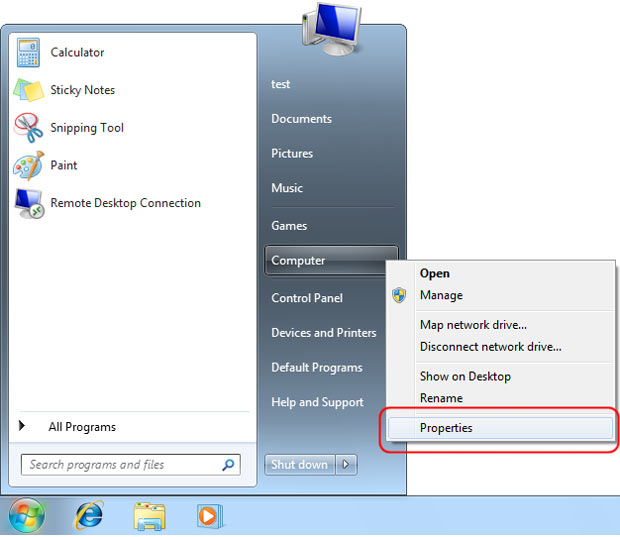
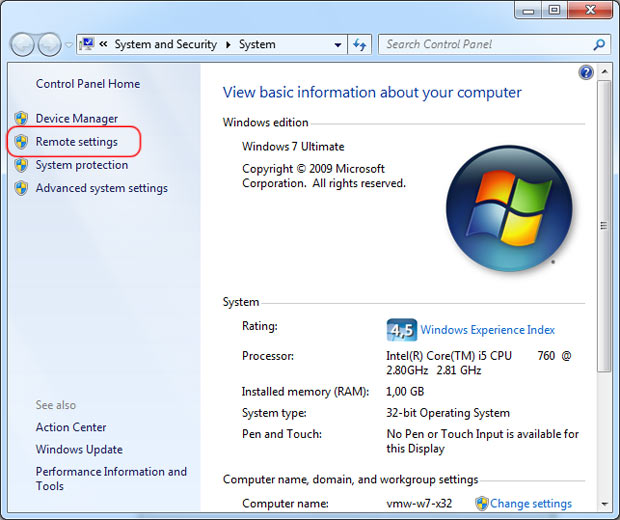
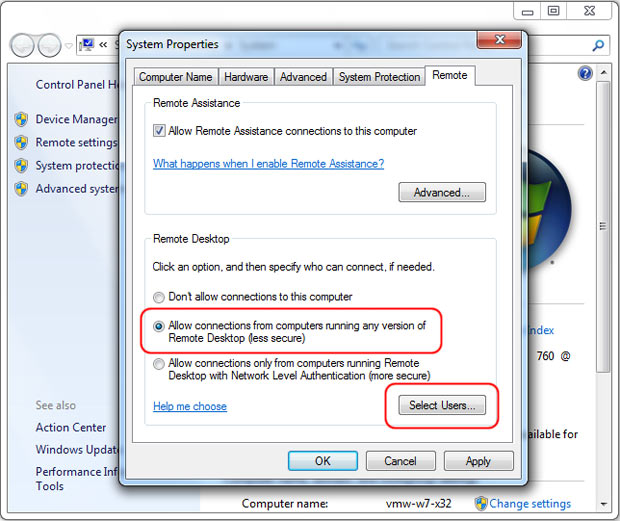
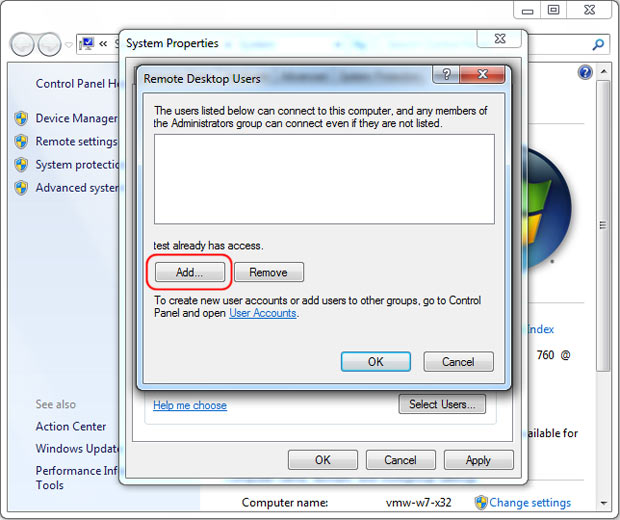
Enable the remote desktop on the host computer
Start the remote desktop session
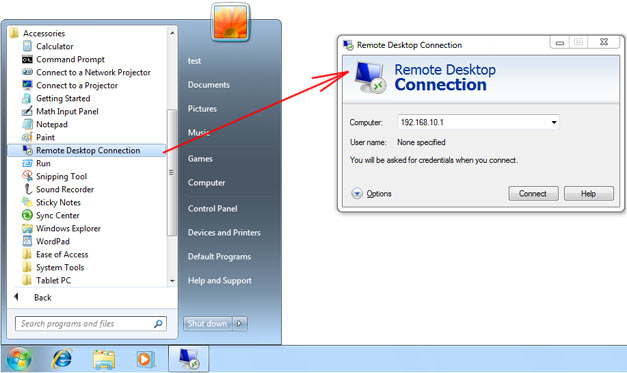
On the client computer go to Start menu, click All Programs, check Accessories and click Remote Desctop Connection. Enter the host computer IP address and start the session.
-

Matthew Vance
USA
«Problem solved as quick as it took to convert this PDF. I definitely want to keep a copy of Universal Document Converter around for the times when nothing else works. In fact, try it first and save yourself the migraine!»