


Convert Visio to JPEG
Many companies generate technical visuals in Microsoft Visio and would like to be able to share this information on their corporate sites. The problem, however, is that most users would not be able to view the visuals in this format. One of the ways of solving this problem is converting Visio diagrams to a more universal format like JPEG. Universal Document Converter easily converts Visio files to JPEG using virtual printing with customizable conversion parameters.
On this page:
- How to convert Visio to JPEG?
- Place watermark on the drawing to protect your copyright
- Convert Visio drawings and charts to JPEG in batch mode
- Visio to JPEG conversion code examples for developers
Place Watermark on the Drawing to Protect Your Copyright
Protecting your documents from illegal use is possible by means of watermarking the documents. Before placing a watermark on your Visio file you need to convert it to JPEG. Follow the instruction below:
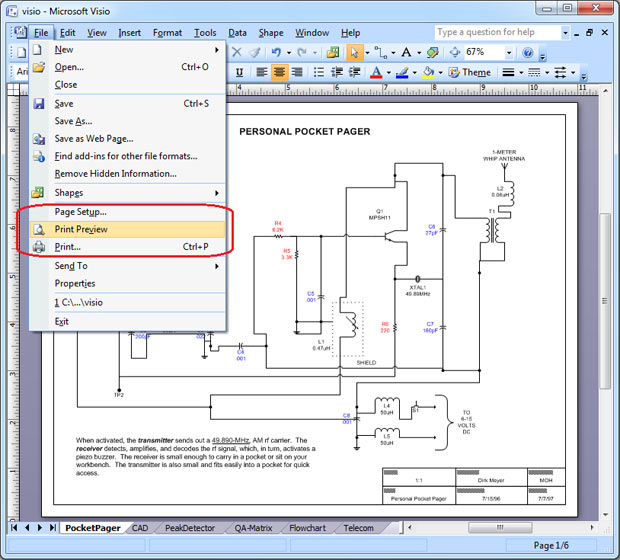
- Open the drawing and click File->Print Preview… in the Visio main menu
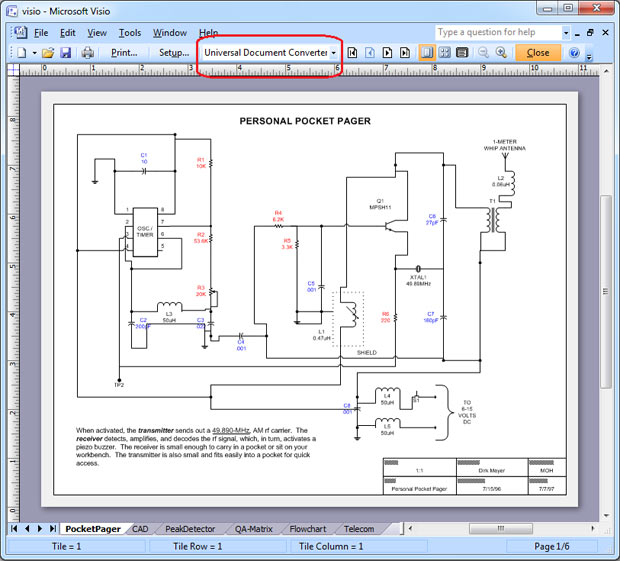
- Select Universal Document Converter from the list of printers
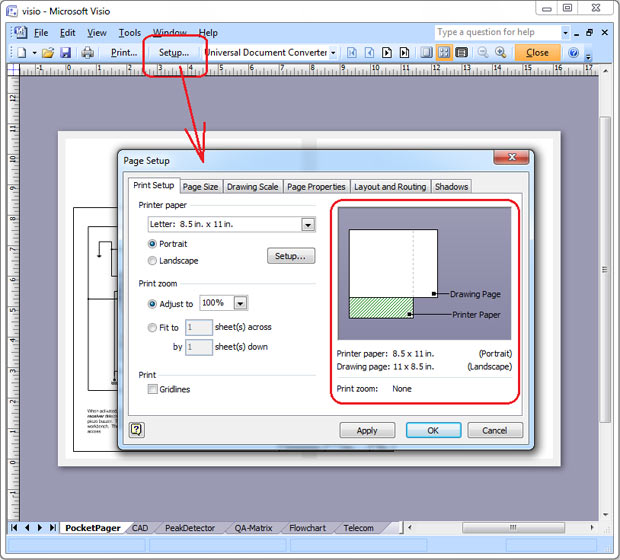
- Click Setup… In case the size of the printer paper and the size of the drawing page are different, try and change the page orientation or the page size to make them similar. Click OK to apply changes.
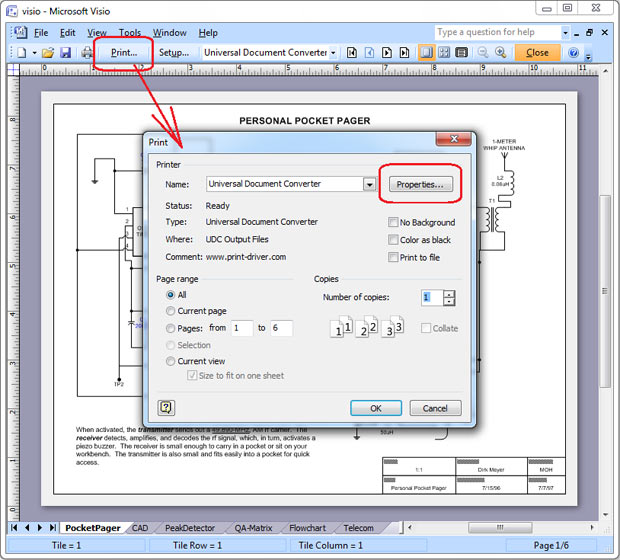
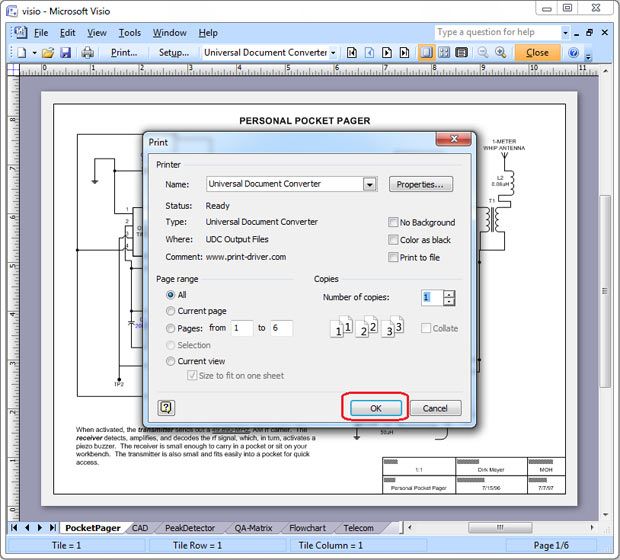
- Click Print…, then click Properties…
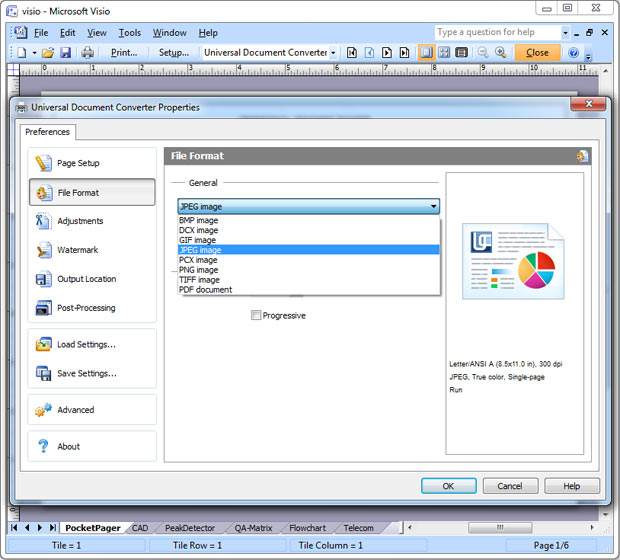
- In the File Format section select JPEG Image
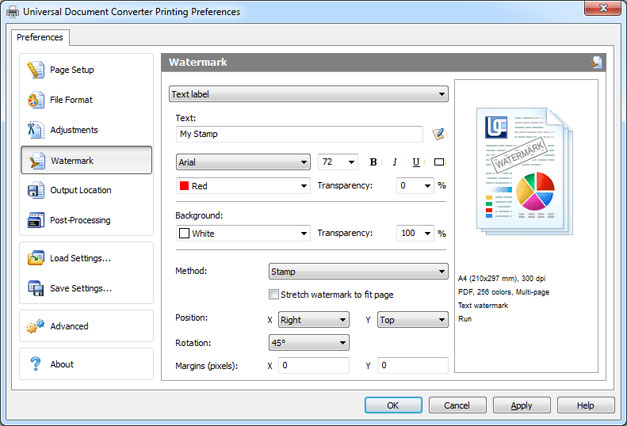
- On the Universal Document Converter settings panel go to Watermark area. You can use Text watermark or Picture like your company logo, etc. Click OK
Convert Visio Drawings and Charts to JPEG in Batch Mode
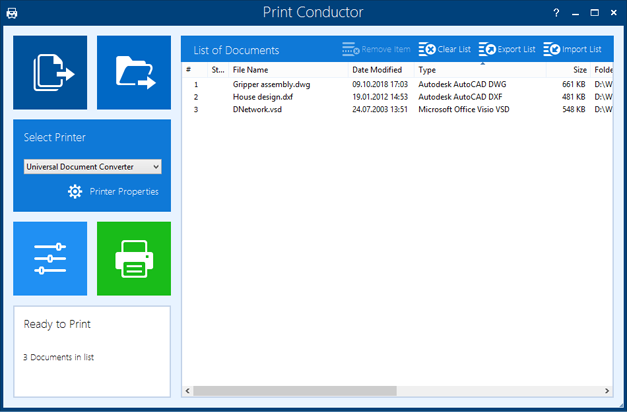
Converting Visio drawings and charts to JPEG in batch mode can take place with the help of the Print Conductor – the software that has been designed specifically for batch conversion of files.
- Add the drawings you would like to convert
- Select Universal Document Converter printer
- Click Change Settings to set the destination folder and JPEG as an output file format
- Click Start to begin converting Visio drawings and charts to JPEG.
Visio to JPEG Conversion Code Examples for Developers
Universal Document Converter offers a range of services to software developers. In case you are involved in conversion projects similar to ours, you can utilize the public API and code examples available with Universal Document Converter. Here are the examples of Visio to JPEG conversion in different programming languages.
Related conversion tutorials:
-

Alan Schoen
USA
«Universal Document Converter is so user-friendly that one doesn't have to remember anything in particular about how to use it. It's structured in such a common-sense way that it just automatically explains itself to the user.»