


Convert Outlook to JPEG
By converting your Outlook email messages to JPEG you make them more applicable for the web use and add to them features that are normally associated with graphics files. Universal Document Converter will help you convert your Outlook email messages to the JPEG format with accompanying quality control and other parameters.
On this page:
- How to save Outlook email message as JPEG?
- Place a watermark on Outlook email messages
- Outlook to JPEG conversion code examples for developers
Place a Watermark on Outlook Email Messages
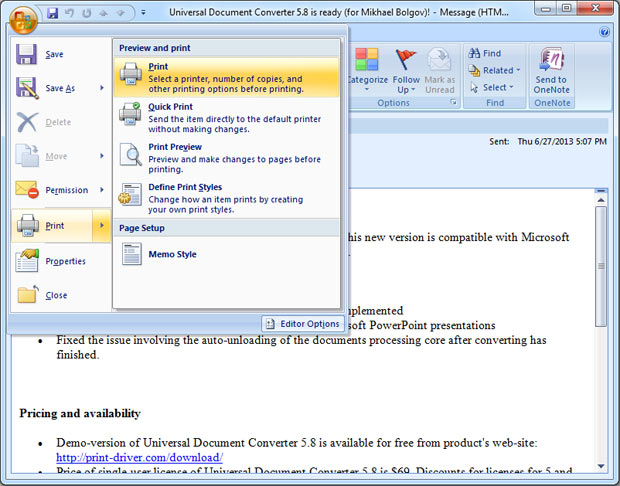
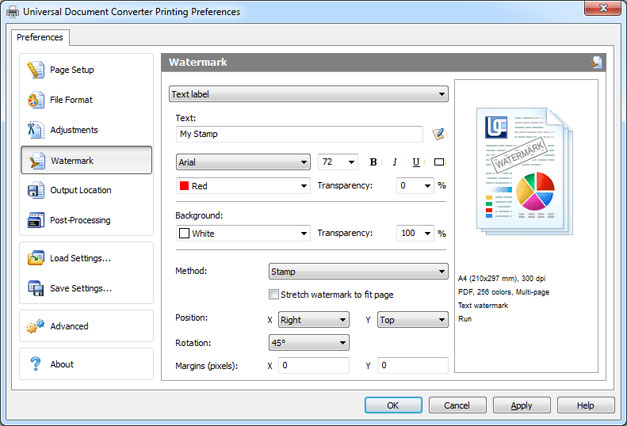
Email correspondence containing information with limited access, should rather be protected by means of watermarking. For example, the message can contain the words “strictly confidential”, or “for internal use only”, etc. Here is the instruction on how to protect the email correspondence by placing a watermark:
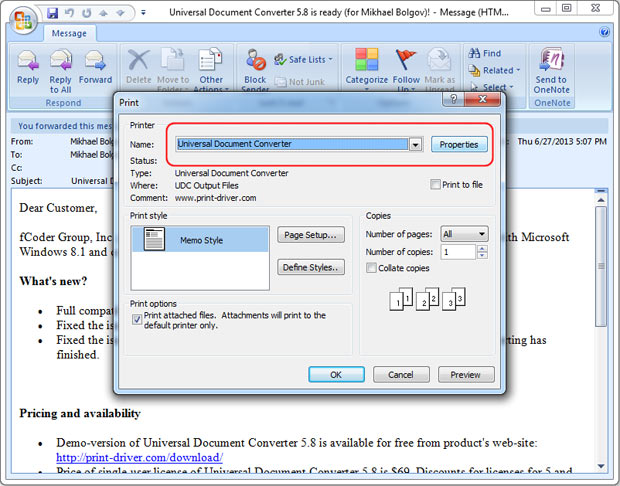
- Open the message and click Print
- Select Universal Document Converter from the list of printers and click Properties
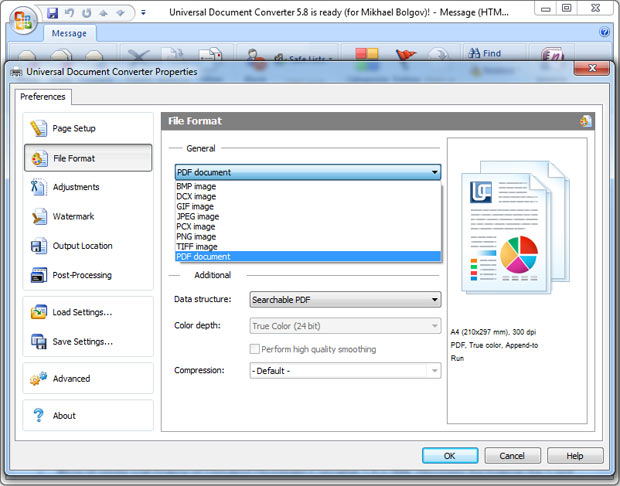
- Go to Watermark and select Text label or Picture depending on your preferences
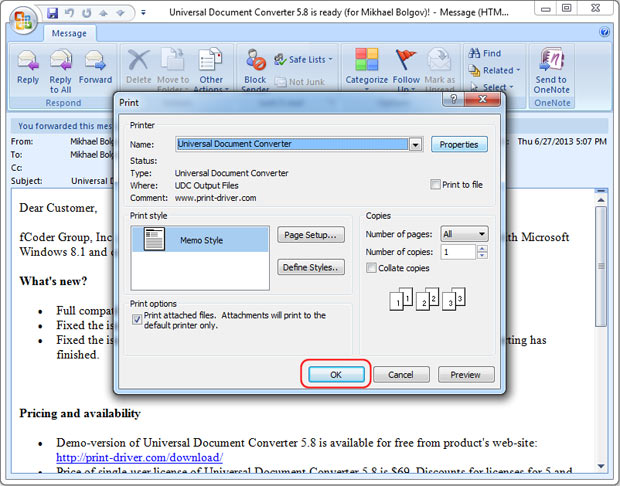
- Click OK to convert your Outlook message to JPEG.
Outlook to JPEG Conversion Examples for Developers
Automatic conversion from Outlook to JPEG can be utilized by software developers. Universal Document Converter offers public API and code examples that are available for similar projects related to documentary conversion.
Here are some examples of conversion from Outlook to JPEG in different programming languages.
Related conversion tutorials:
-

«Universal Document Converter is a instrument that allows me to do my CRM consultant work much faster. It converts Documents for my clients, in various Formats such as PDF, docx, and even image diagrams in JPEG, BMP, PCX, PNG, with the best conversion quality!»