

Post-Processing
This tab contains the tools to configure program steps following conversion. This configuration is managed using the following interface controls.
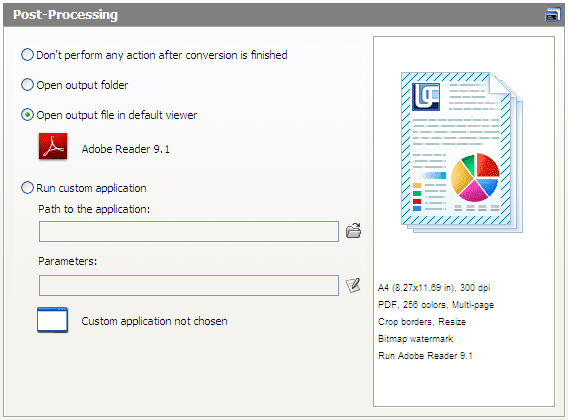
Don’t Perform Any Action after Conversion is Finished. In this mode, the software does not perform any actions upon the conversion process completion.
Open Output Folder. In this mode, the software will automatically open a window showing the output folder after conversion is completed.
Open Output File in Default Viewer. In this mode, the software will automatically open all the resulting files in the default application.
Run Custom Application. In this mode, the software will automatically start the specified application after conversion is completed.
- Path to the Application. The application that will be started following the conversion completion. It can be specified using the standard file selection dialog.
-
Parameters. Additional application runtime parameters. It may contain the following macros that the software replaces with actual values at runtime.
Macro Description Example value &[OutFile(0)] Full path and output file name C:\UDC OutputFiles\My Document.pdf &[OutFile(1)] Full path and output file name in 8.3 format; C:\UDCOUT~1\MYDOCU~1.PDF &[Copies] Number of copies you set for the application. The Universal Document Converter creates one file per output page. 1
Macros may be entered manually or selected from a list by pressing . An example is given next to the name of each macro as an illustration of what the resulting file will look like.